Name List
Import a Name List
Edit a Name
Create a Custom field
Add a New Name
Merge Duplicates
Delete a Name
Export Name List
eBusiness allows you to import one or more lists of individuals or businesses. Please verify that the name list has only one entry per student. Any updated name list should be consistent with the original (e.g. grades 9 and 09 will cause duplication).
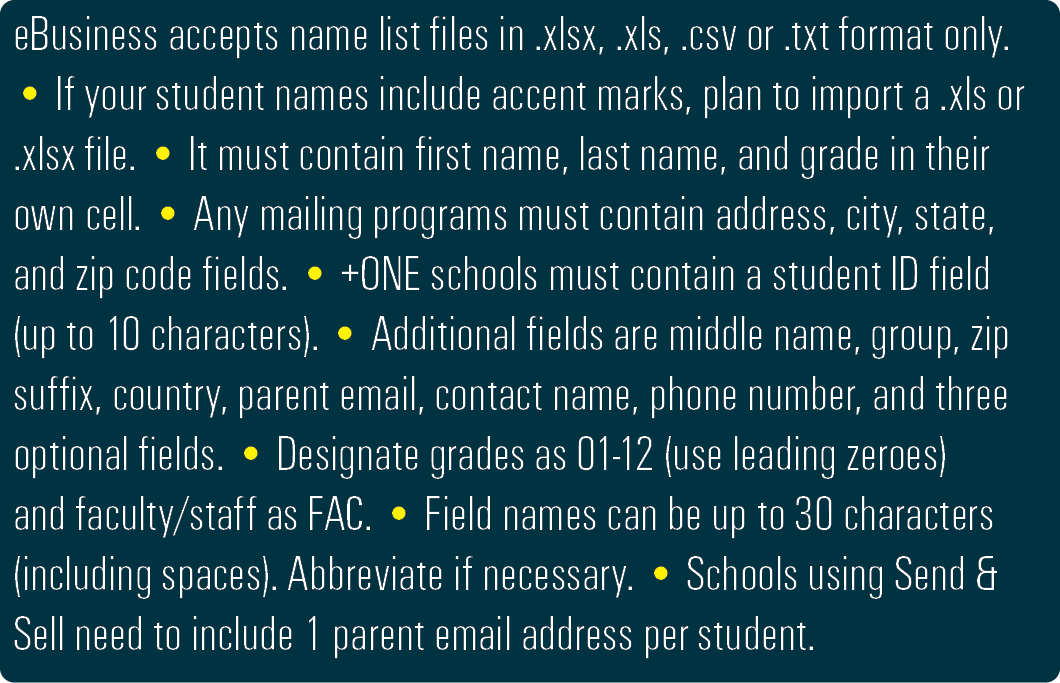
To import a Name List file:
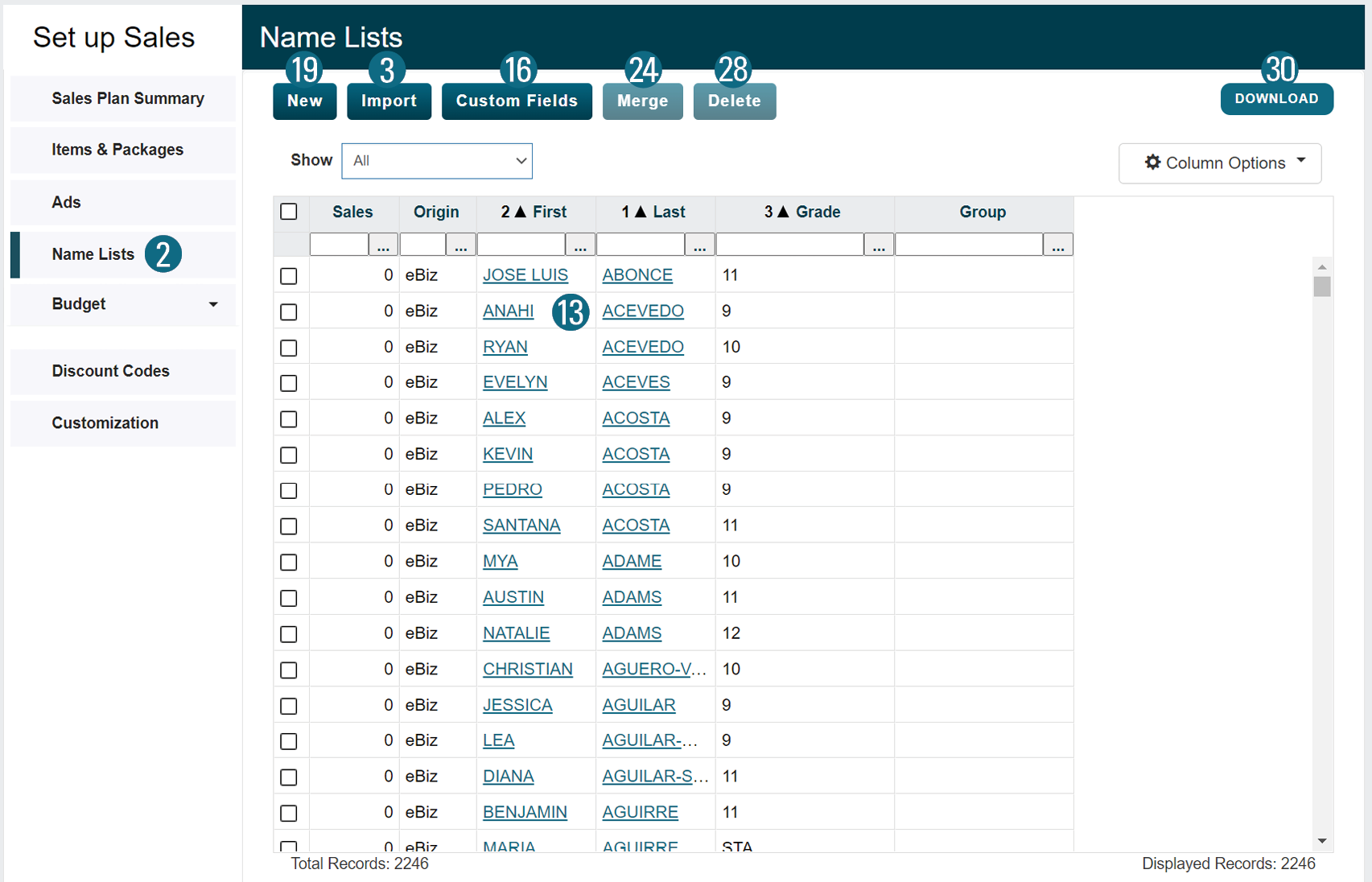
1. From the Setup menu, select Setup Sales.
2. Select Name List.
3. Click the Import button.
4. Read the screen then click Select File.
5. Browse to file, highlight and click Open.
6. Select either Business or Student List
7. Click the Continue button.
If a list is already imported, you can:
• Add new names only.
• Update the list and discard new names.
• Update the list and add new names.
8. Click the Continue button.
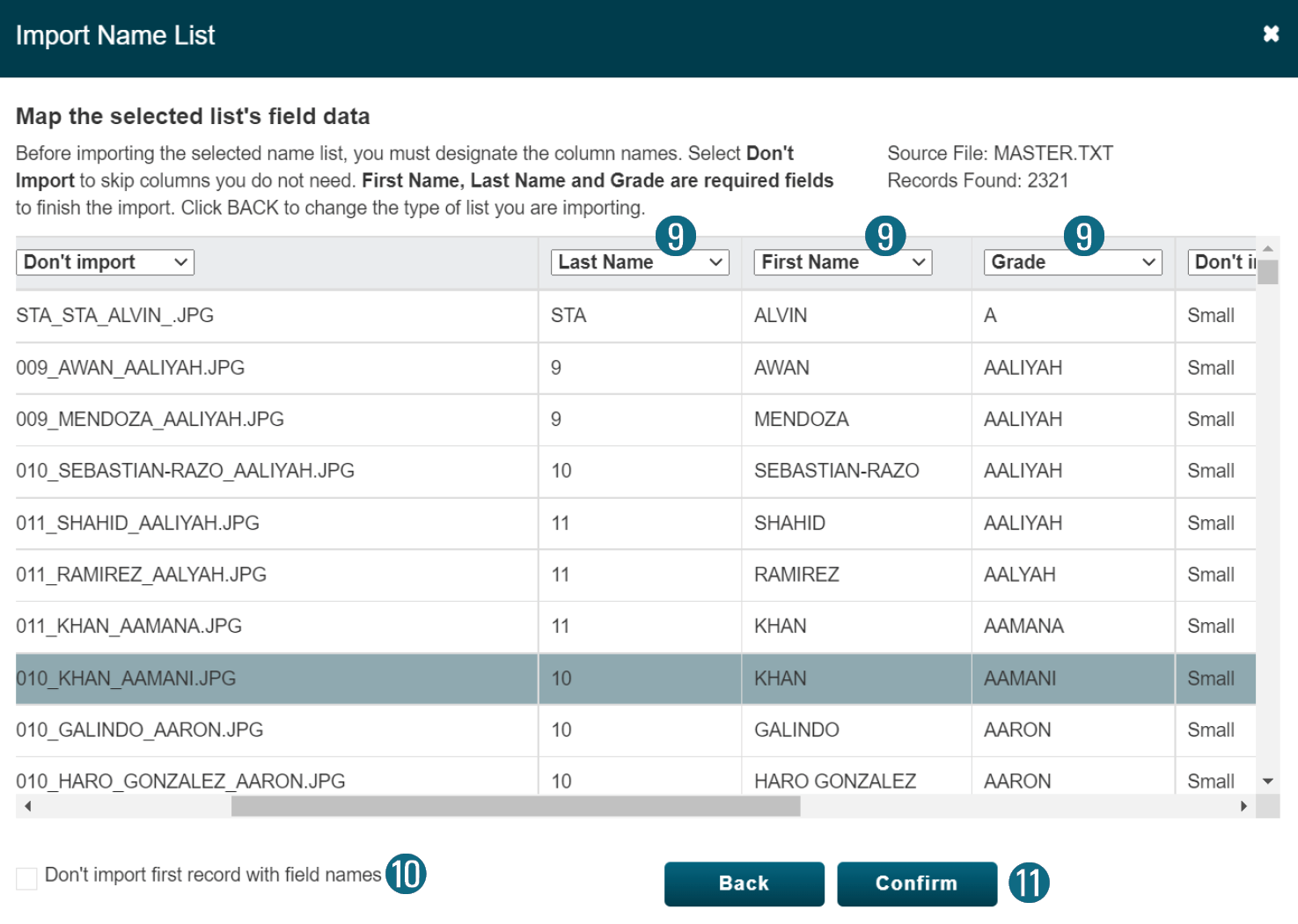
9. Match the drop-down menus with the fields.
10. If necessary, check the box “Don’t import record.”
11. Click The Confirm Button.
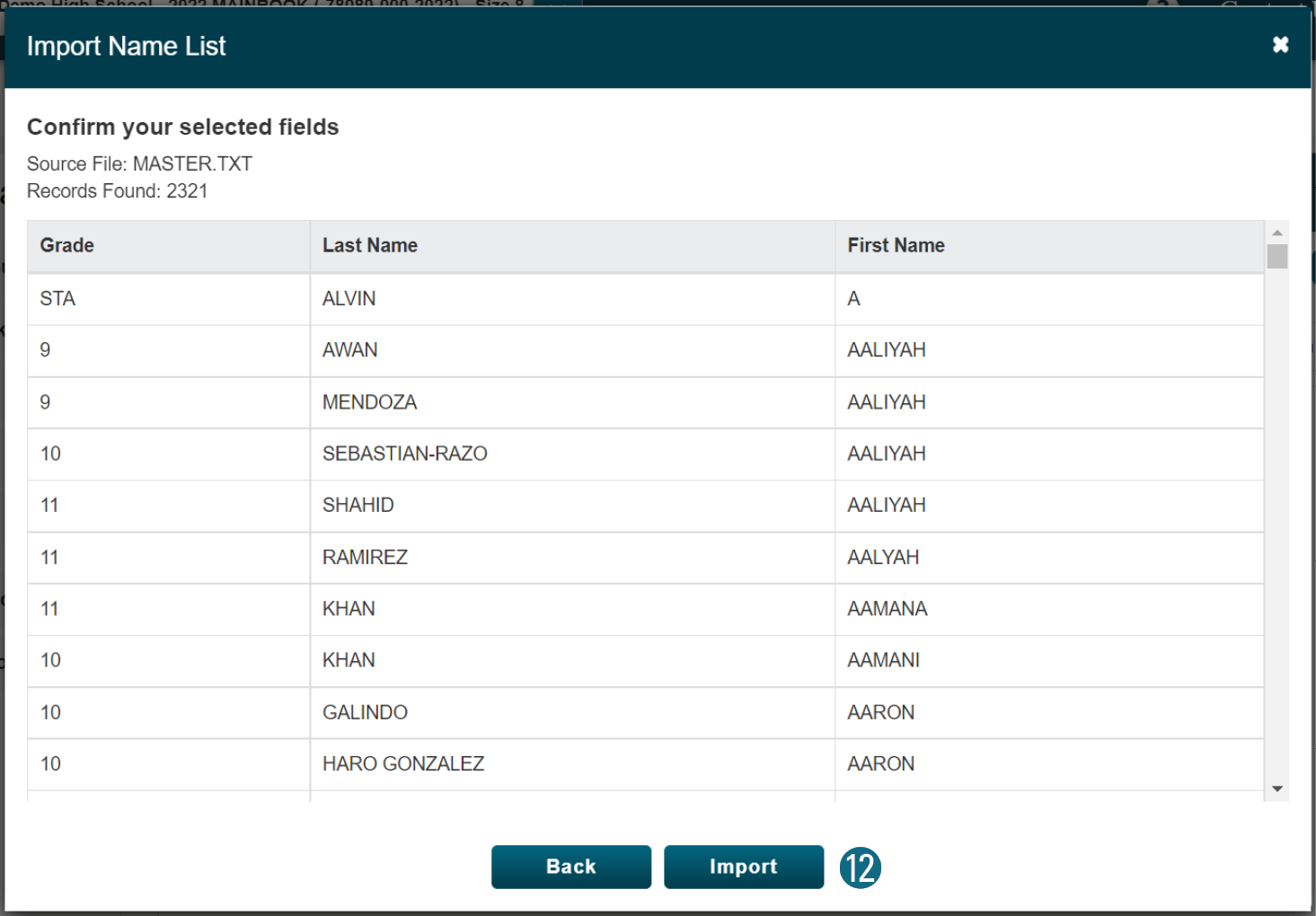
12. Click the Import button.

Click here for Sort and Filter Tips 
To edit a name:
13. Click on the blue underlined name (above).
14. Make the desired changes.
15. Click the Save button.

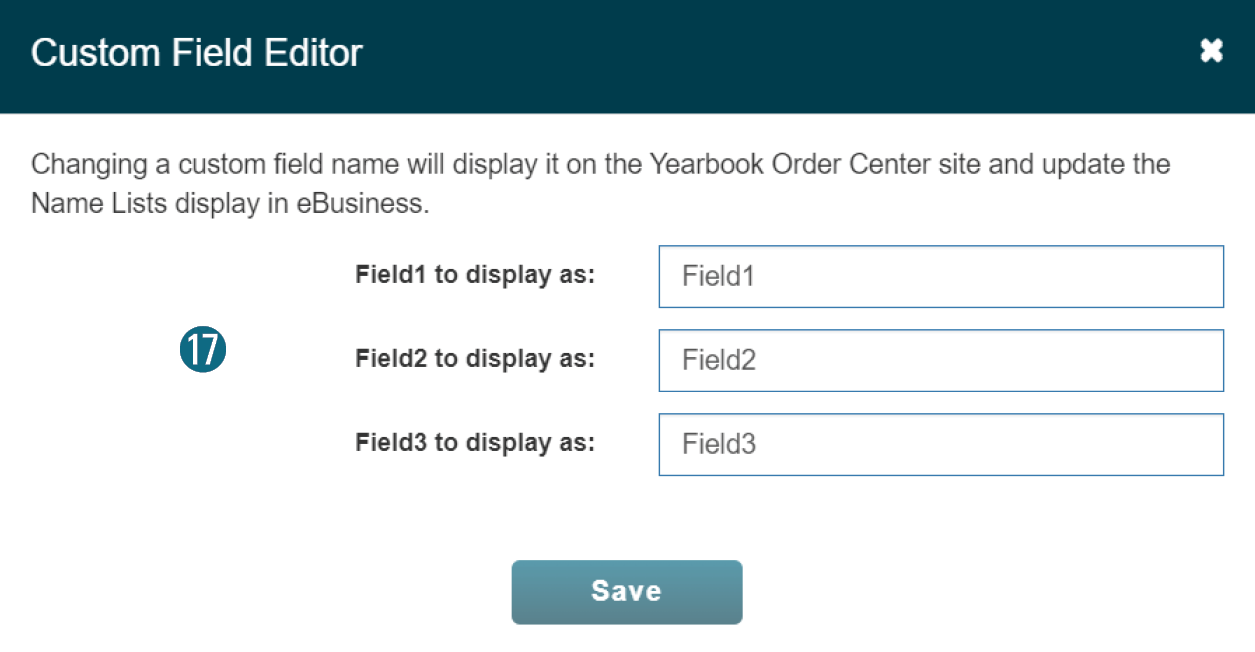
To create a custom field:
There are three extra fields in the Name List that can be used for tracking any undesignated information.
16. Click Custom Fields button (above).
17. Type a descriptive for Field 1 through 3.
18. Click the Save button.
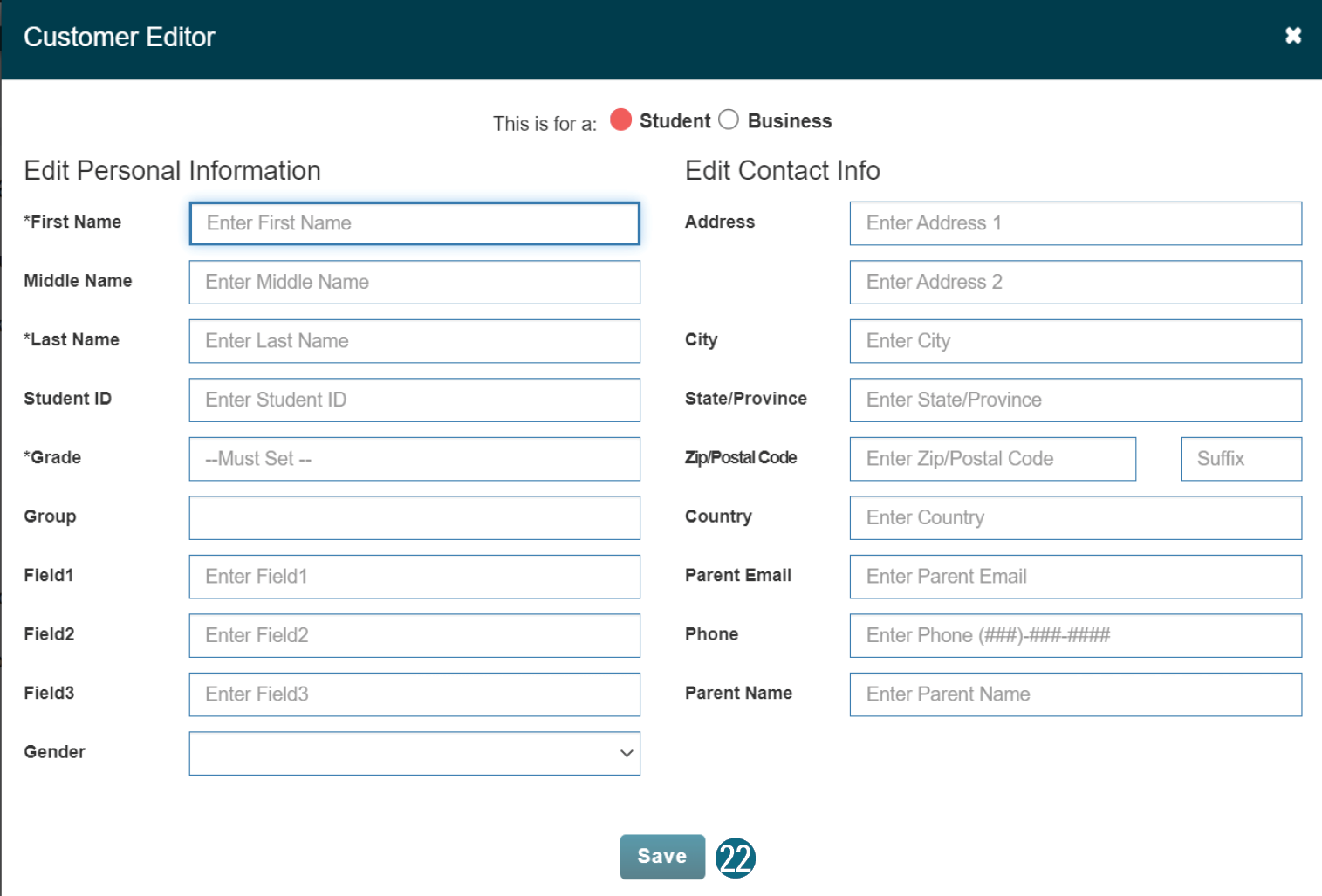
To add a name to the Name List:
19. Click the New button.
20. Mark student (or business).
21. Enter last name, first name, grade and other info.
22. Click the Save button.
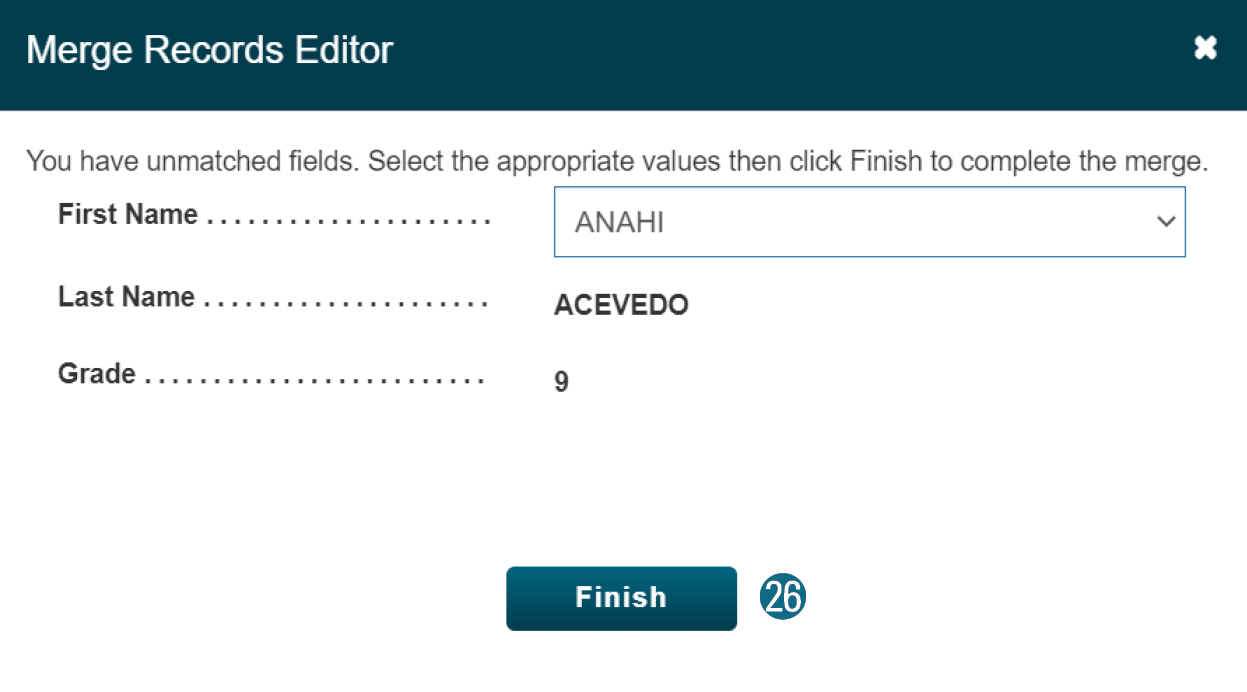
To merge duplicates:
eBusiness lets you combine any 2 duplicate entries.
23. Check the box to the left of the duplicates.
24. Click the Merge button (above).
25. Where necessary click the blue replace arrow.
26. Click the Finish button.
To delete a name:
eBusiness will only delete names without purchases.
27. Check the box to the left of the entries.
28. Click the Delete button (above).
29. Confirm by clicking the second Delete button.
Export current names:
30. Click the Download button (above).
31. The name list file will automatically download.